Troubleshooting
When Desomnia is not behaving as expected, enabling logging is always the right first step. By default Desomnia produces minimal output; a configured log file will show which resources it is tracking, what activity it is detecting, and which actions it is executing — making most problems immediately apparent.
Network interface cannot be found
- OS:
🪟 Windows
When Npcap is installed, it registers itself as a filter driver on all physical network interfaces. Installing a new network adapter — including the virtual switch created by Hyper-V — or reconfiguring an existing one can cause the Npcap driver to be disabled or not yet attached to the underlying physical interface. When this happens, Desomnia cannot capture packets on that adapter and will fail to detect any network traffic.
The setting is not exposed in the modern Windows Settings app or in Device Manager. It can only be reached through the classic network adapter properties dialog:
Open Control Panel → Network and Internet → Network Connections (or run
ncpa.cpl).Right-click the physical network adapter and choose Properties.
In the list of installed network features, locate Npcap Packet Driver (NPCAP).
Make sure the checkbox next to it is enabled.
Click OK and restart Desomnia.
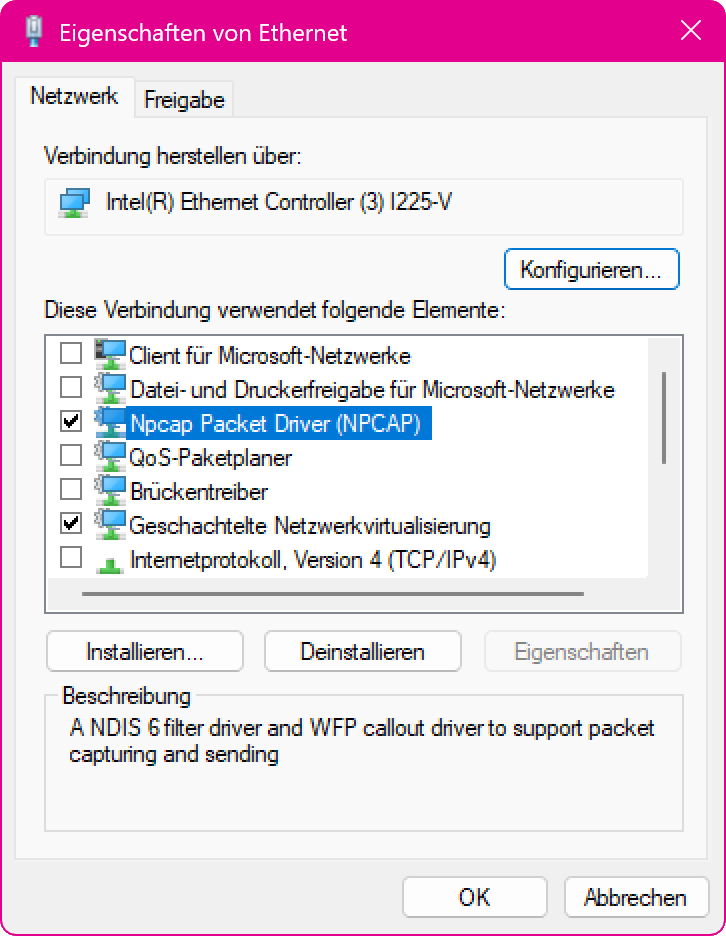
The Npcap Packet Driver entry must be checked on the physical adapter.
Note
In a Hyper-V setup, the relevant adapters are the physical one that the virtual switch is bridged to and the virtual adapter that carries the IP configuration. Both need to have the Npcap Filter Driver enabled. See Hyper-V Support for how Desomnia selects the capture interface in that scenario.
Sleep Proxy
- OS:
🪐 Platform-independent
Problems with the Sleep Proxy usually surface as a sleeping host that cannot be reached, or one that wakes when it should stay asleep. The scenarios below cover the common causes on both ends of the exchange; logging at debug level shows every registration, lease and wake decision and is the quickest way to tell which one applies.
The proxy is not offered on the network
The Sleep Proxy service is only advertised when the <NetworkMonitor> runs in promiscuous mode and is allowed to learn hosts or services dynamically. If either is missing, no _sleep-proxy._udp service appears on the link and clients have nothing to register with.
Set watchMode="promiscuous" and an autoDetect value that includes Host and/or Service (see Enabling the proxy).
A registration is refused
A proxy rejects a registration it cannot map to a host: autoDetect="Service" only attaches newly registered services to hosts the proxy already knows, so a registration for an unknown host is refused unless autoDetect="Host" is also set (which lets the proxy create the host definition on the fly). Registrations are also refused once the lease pool is full.
Add Host to autoDetect so unknown hosts can register, and raise the lease limit if the pool is exhausted. The debug log states the reason for each refusal.
Note
An Apple client treats any response as success and suspends believing it is proxied, so it never surfaces a refusal — see Apple Compatibility. Watch the proxy’s log to confirm registrations are actually being accepted.
Connections are lost in the first minutes after a host sleeps
Address-resolution caches (ARP/NDP) on other devices keep pointing at the host for several minutes after it suspends. A device connecting within that window issues no fresh resolution query, so the proxy never sees the attempt and cannot wake the host — the connection is silently lost. This is exactly the gap handoff closes.
Configure handoff on the departing host with handoff="SleepProxy" (and/or UnMagicPacket for peer Desomnia proxies) so it announces its suspension proactively, rather than waiting for the first failed connection.
A host suspends even though the handoff failed
By default a failed handoff is only logged as a warning and the host suspends regardless, leaving it unreachable until it wakes on its own.
Add Mandatory to the handoff value (for example handoff="SleepProxy|Mandatory") to hold the host awake while a required handoff keeps failing. Note that this only governs suspends Desomnia itself triggers — it cannot stop the operating system, another application, or a closed laptop lid from suspending the machine.
The proxy wakes a host right after it sleeps, or handoff is flaky
After a handoff the proxy waits handoffTimeout and then probes whether the host has really gone. If that timeout is too short, the operating system may not have finished suspending — the host still answers, the proxy concludes the handoff was spurious, and either fails the handoff or wakes the host straight back up.
Increase handoffTimeout and, on networks where suspend takes longer to settle, handoffRetry so reachability is re-checked a few more times before the host is judged still awake.
A host with many services fails to register
A registration listing many services can exceed the network’s packet size. Sent as a single datagram it is IP-fragmented, and some paths or firewalls drop fragmented UDP, so the registration never arrives complete.
Set handoffMTU on the registering host (1440 matches Apple’s client) so the registration is split into a burst of smaller messages that the proxy reassembles.
The proxy cannot wake the host, or rejects the password
If a SecureOn password is in play, the proxy must present the exact value the host’s network adapter expects, or the wake is ignored. A SecureOn password is at most 6 bytes; longer values are rejected outright.
Set a valid 4- or 6-byte handoffPassword that matches the host’s SecureOn configuration; use handoffPasswordEncoding="base64" to supply the raw bytes if the password is not plain text.
A sleeping host cannot be reached by name
The proxy defends a sleeping host’s addresses, but a client connecting by name must first resolve that name to an address. If nothing on the network answers name resolution for the sleeping host — many routers do not resolve local names, and networks pointed at a public DNS resolver have no local authority at all — the client never obtains an address to connect to, and the proxy’s address defence never comes into play.
Enable advertiseHosts="true" so Desomnia answers the A / AAAA query on the host’s behalf (see Multicast DNS).
A sleeping host’s services are not discovered
Service-browsing clients (Bonjour/DNS-SD) stop seeing a host’s services once it sleeps, so the discovery-then-connect that would have woken it never happens. Advertising services over mDNS is off by default.
Enable advertiseServices="true" so the proxy keeps publishing the PTR / SRV / TXT records while the host is asleep (see Multicast DNS).
A host is woken periodically for no obvious reason
When a lease reaches its end the proxy wakes the host by default (sleepProxyLeaseExpire = wake), so it can reclaim its presence and re-register. The requested handoffDuration is also clamped to the proxy’s lease range — and an Apple proxy caps leases at 24 hours and always wakes on expiry regardless of the setting. A parked host is therefore woken at least once per lease.
Lengthen handoffDuration (up to what the proxy will grant) to space the wakes out, or set sleepProxyLeaseExpire="none" on a Desomnia proxy if a lapsed lease should simply be released instead of waking the host. Behind an Apple proxy, expect at least one wake per day.
Desomnia loses out to another proxy on the segment
When several Sleep Proxies serve the same segment, clients register with whichever advertises the lowest (best) metric. If another device — an Apple TV, for instance — advertises a better metric, hosts register there instead of with Desomnia.
Advertise a better metric with sleepProxyMetrics="best" (or an explicit lower four-field value) on the Desomnia proxy you want hosts to prefer.